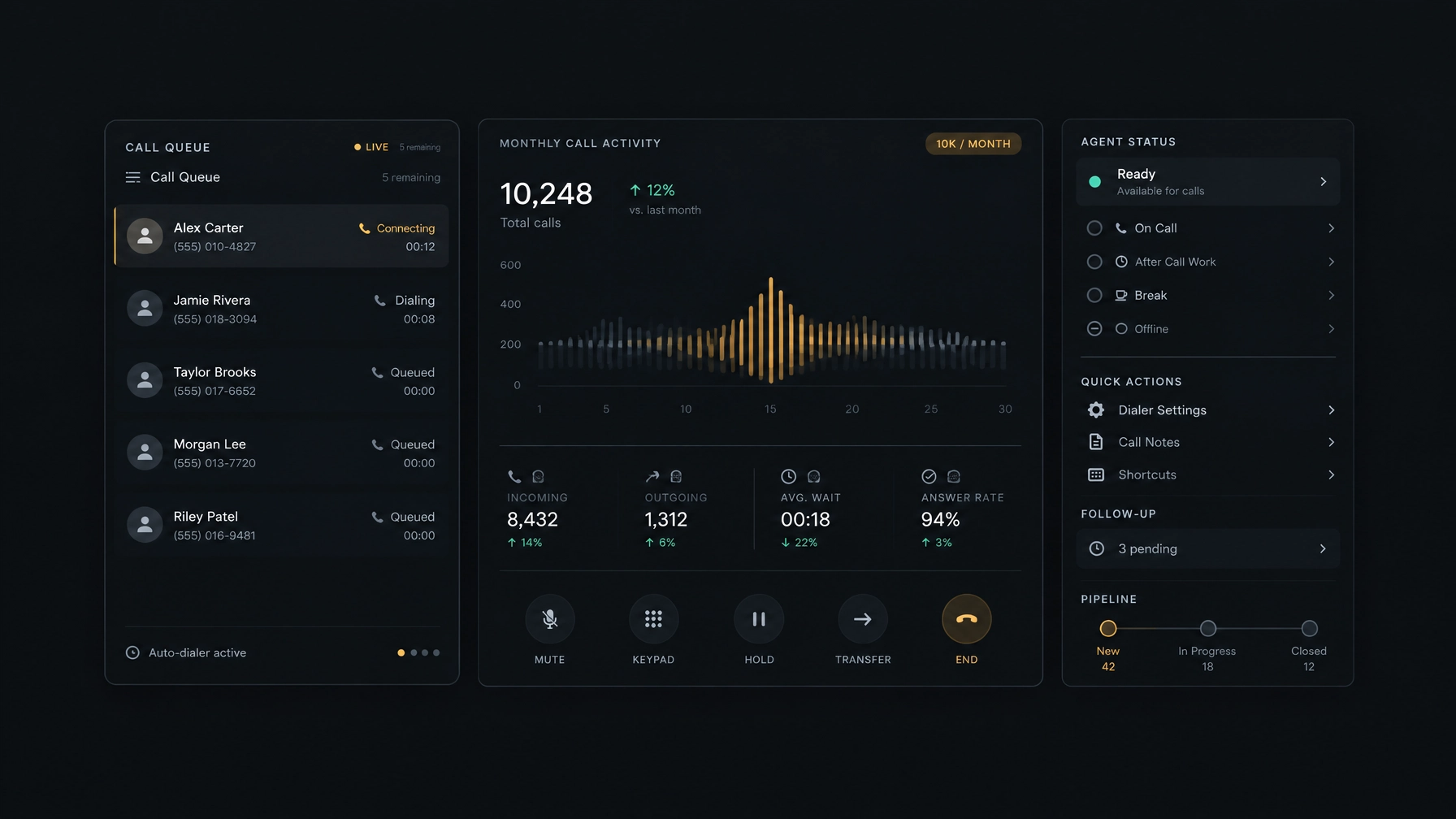
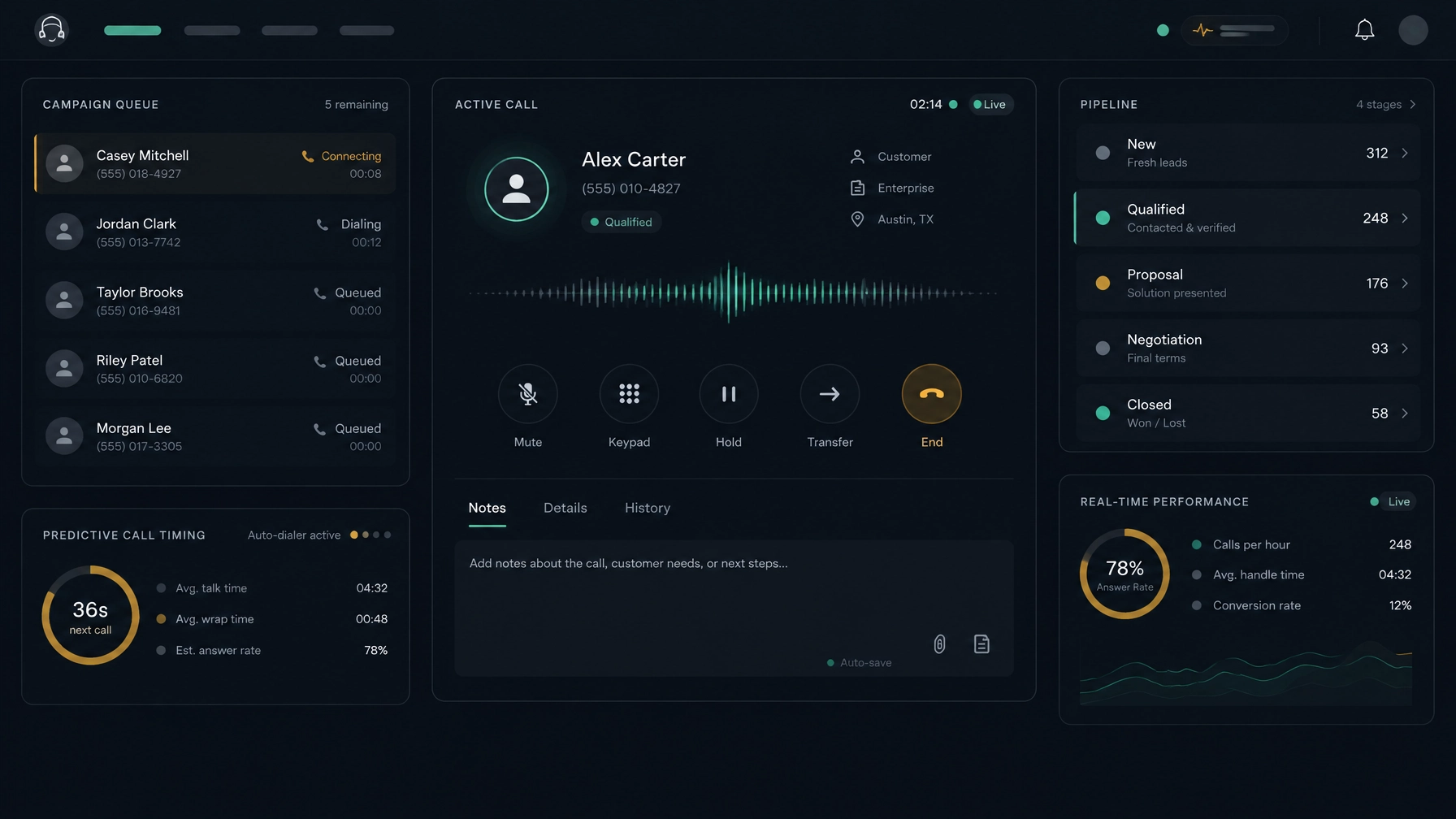
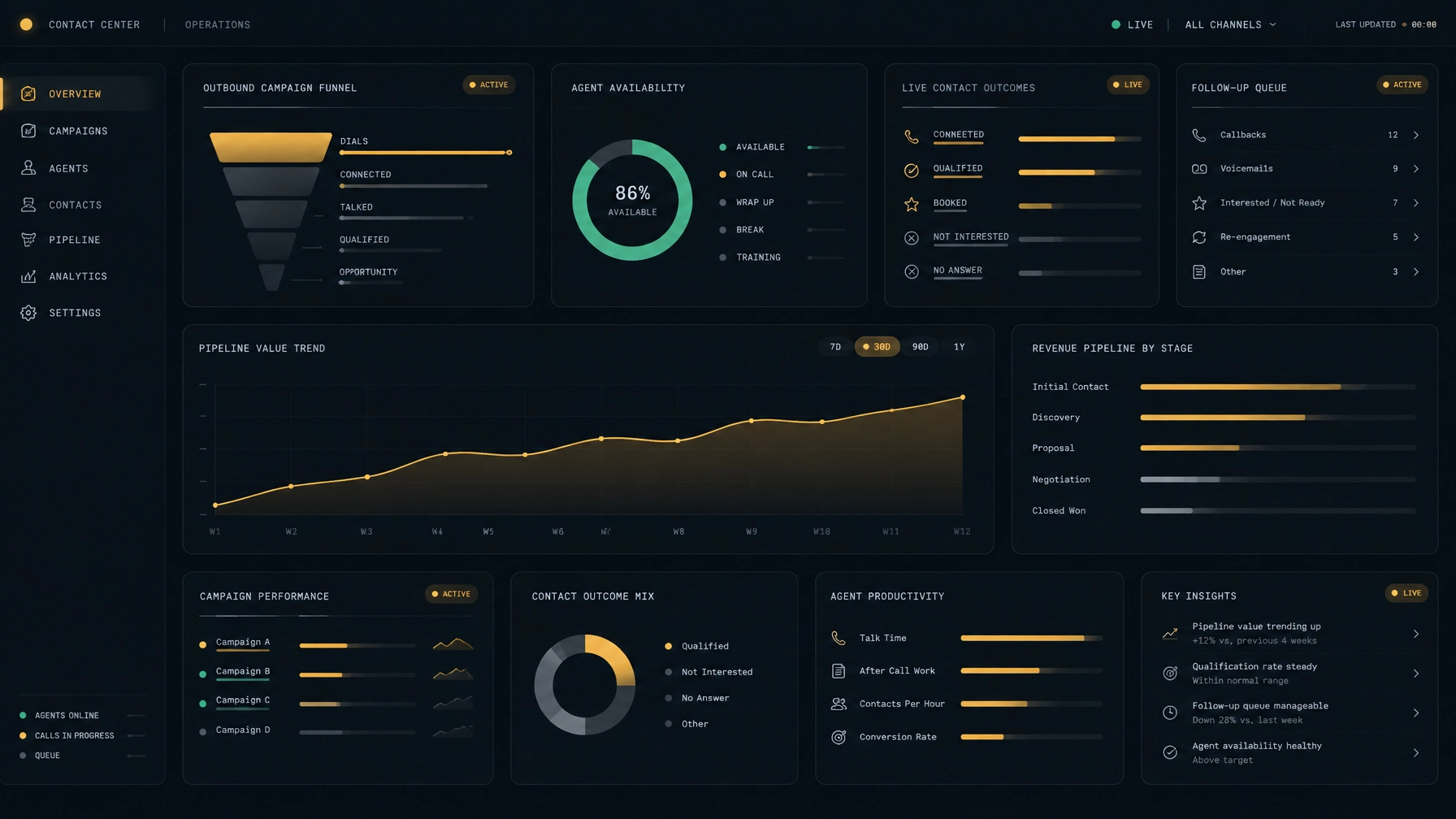
Is Your CRM Working Against Your Sales Team? How Dialer Integration Changes Everything
Your reps finish a call, open the CRM, search for the right record, type a summary, update the deal, and set a reminder. Then they switch back to the dialer and find the next number. Repeat that across a full calling day, and small bits of admin can become a real obstacle to consistent follow-up.…
Your reps finish a call, open the CRM, search for the right record, type a summary, update the deal, and set a reminder. Then they switch back to the dialer and find the next number. Repeat that across a full calling day, and small bits of admin can become a real obstacle to consistent follow-up.
When your CRM and calling tools operate separately, the problem is not just extra clicks. Reps may call without the latest context, leave records incomplete, or miss a follow-up they meant to schedule. Managers may have to piece together activity from different systems before they can understand what is happening in the pipeline.
CRM dialer integration connects calling workflows with customer and deal records. Done well, it helps your team move from call to record to next step with less friction. Here’s what to look for, what changes, and where a built-in CRM may be a better fit than connecting separate products.
What CRM dialer integration means
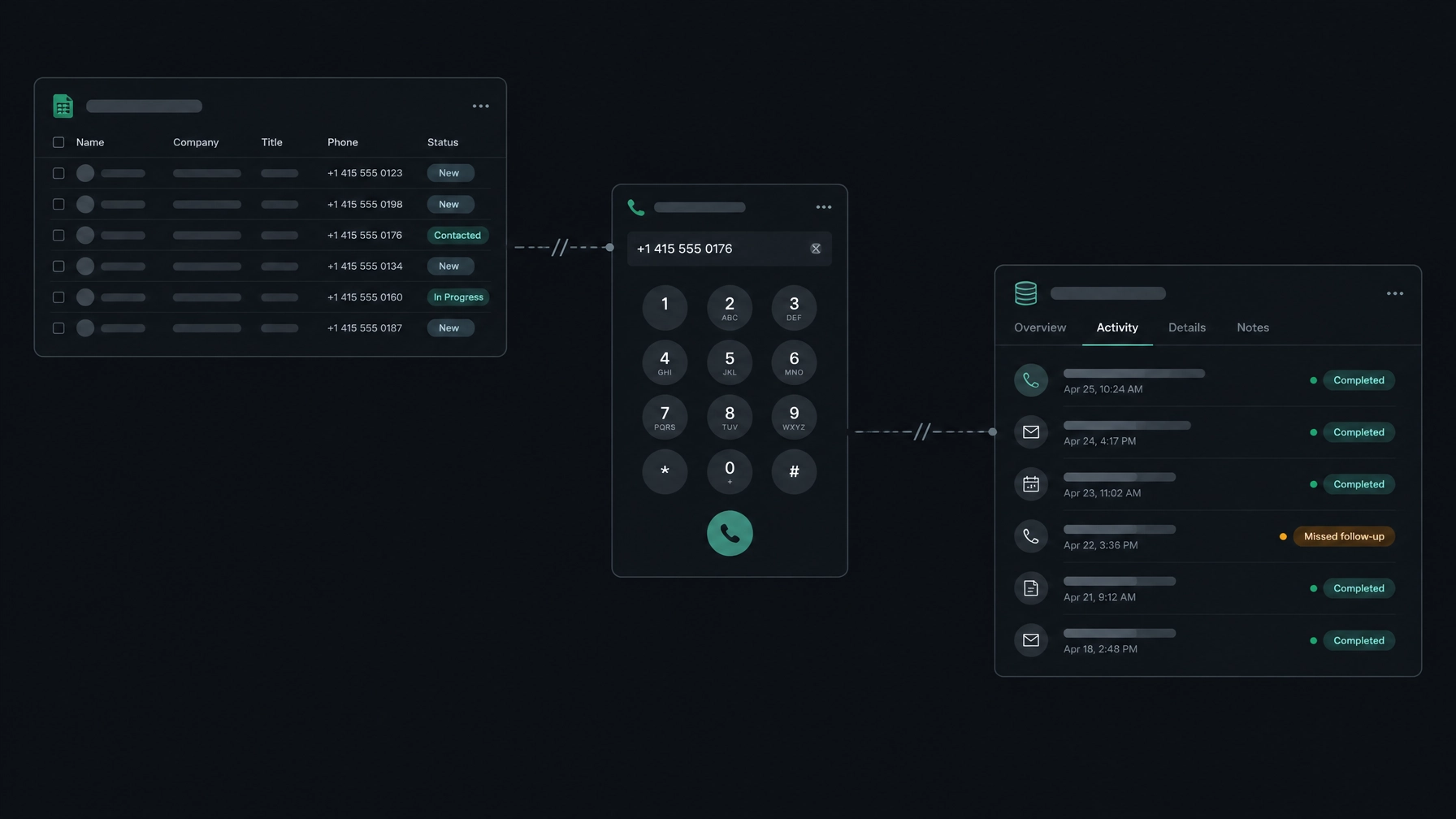
A CRM dialer integration links your sales dialer software with a CRM so call activity and customer information can work together. Depending on the platform and setup, a rep may be able to start a call from a record, see relevant customer details while calling, and save the outcome back to that record.
The exact capabilities vary. Some tools sync call details automatically. Others require a rep to select a call outcome or save notes. Some connect to an external CRM, while others include their own contact and pipeline tools.
That distinction matters. “Integration” does not guarantee that every field, activity, or workflow will sync the way your team needs. Confirm what information moves, when it moves, and which actions still require a person.
Four ways a connected workflow helps
1. Less switching, more conversation
A disconnected setup asks reps to move between the phone system, CRM, and sometimes a separate task list. Each switch takes attention away from the call and makes it easier to lose your place.
With a connected workflow, reps can get to the call from the contact or campaign they are working on. They can keep relevant details nearby and record the outcome without rebuilding context in another application. The benefit is not simply fewer windows. It is a more direct path from the work in front of you to the next useful action.
2. A clearer picture before every call
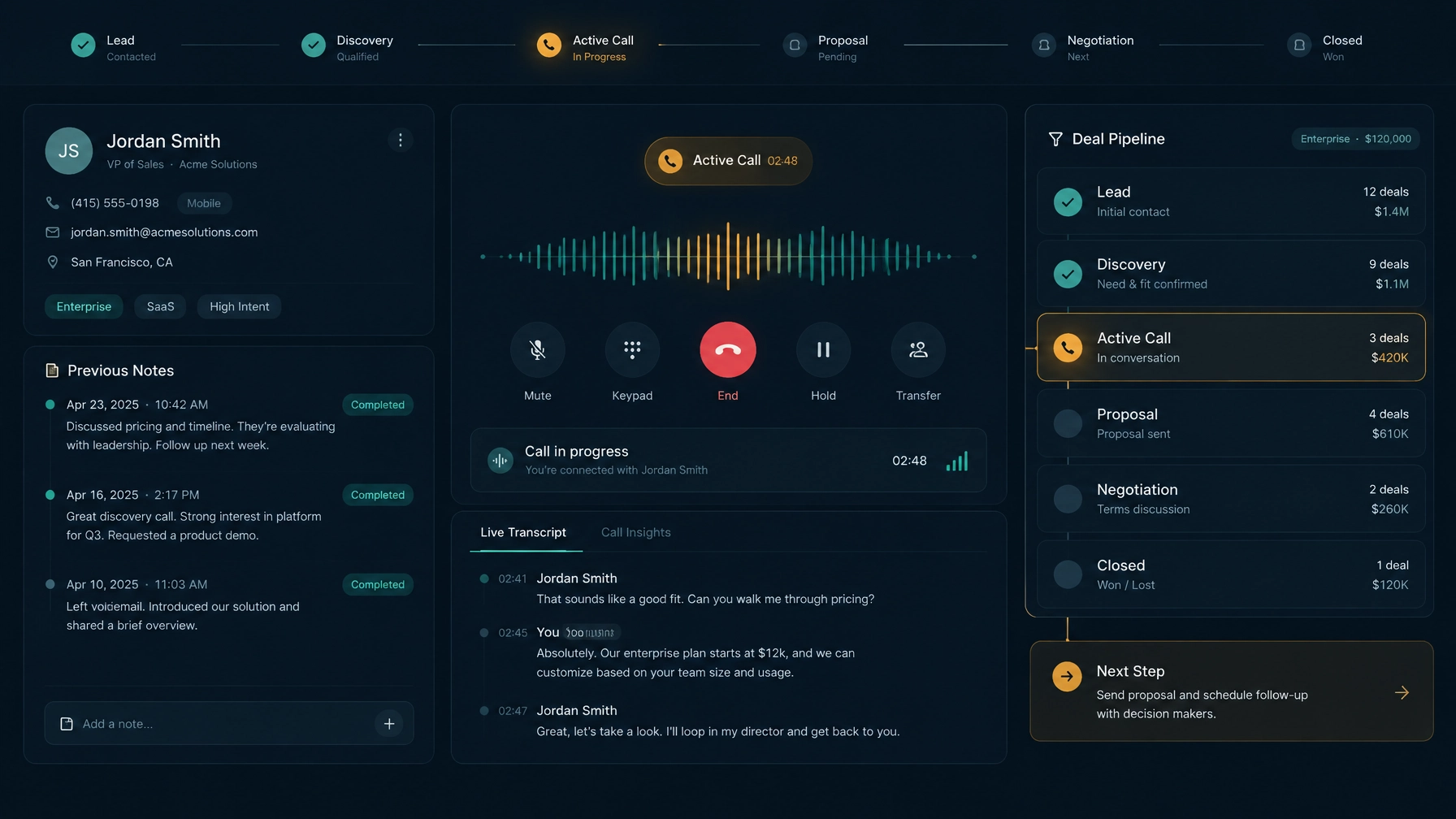
A name and phone number are rarely enough context for a good sales conversation. Reps may need to know what the prospect asked about, when someone last followed up, or which deal stage the contact is in.
A well-designed CRM dialer setup brings those details close to the call. Before dialing, the rep can review the record. After the call, they can leave notes and set the next step while the conversation is still fresh.
3. More useful pipeline updates
A CRM pipeline is only as useful as the information behind it. If call outcomes stay in a separate tool, the deal record can lag behind the conversation. Managers then review pipeline stages without knowing whether a prospect answered, asked for a callback, or needs another kind of follow-up.
A connected sales workflow can make it easier to keep activity and pipeline records in step. Depending on the system, a call result may prompt a rep to update a stage, create a follow-up task, or review a deal. Check which steps happen automatically and which need a rep’s confirmation. A clear process is better than assuming the software has made an update it has not.
4. Analytics tied to the work
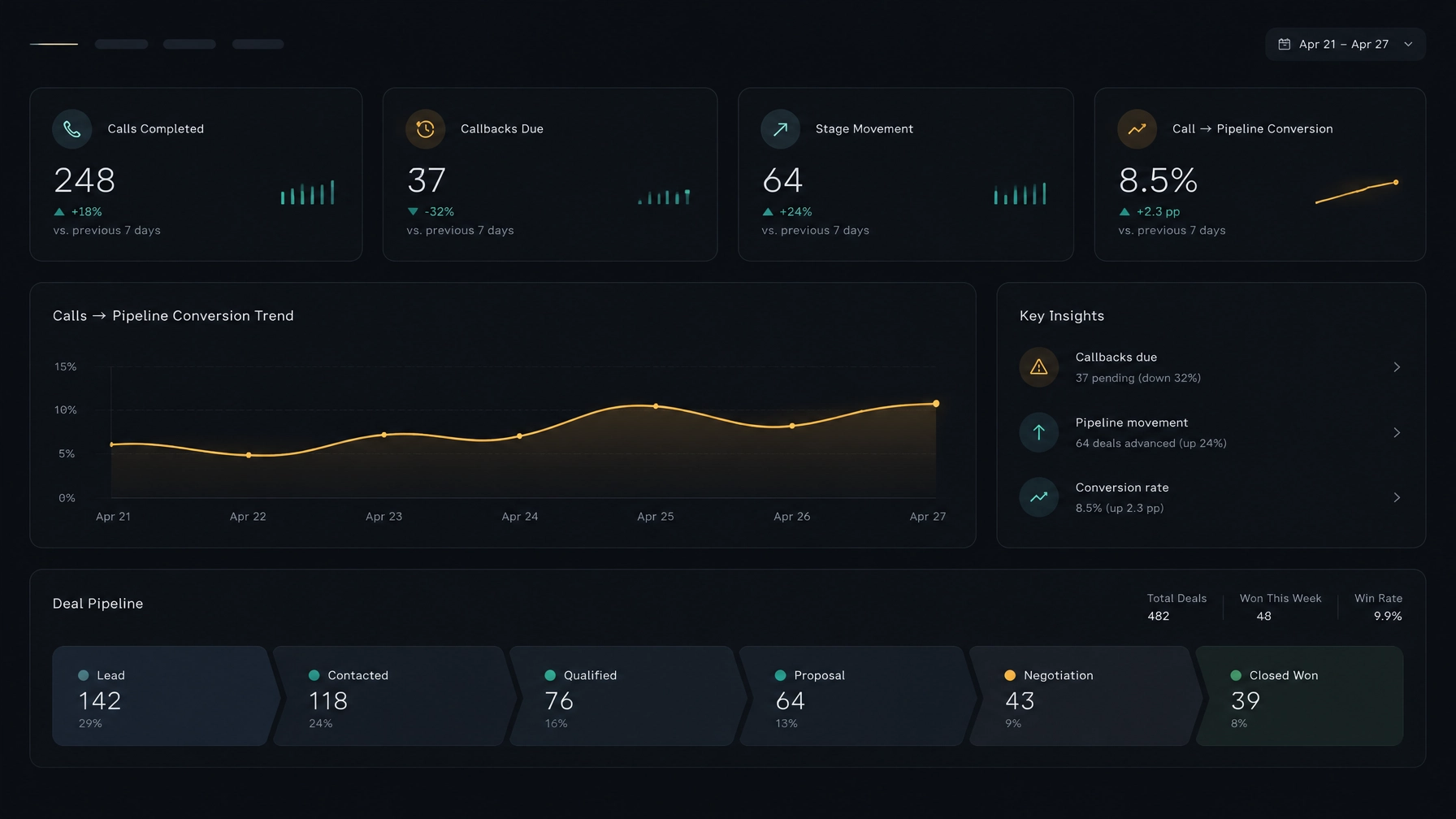
Call totals alone do not explain whether the team is advancing opportunities. When activity and outcomes sit alongside contact and deal records, managers can review calling patterns in the context of pipeline work.
Useful questions include: Are callbacks being completed? Which outcomes tend to lead to a next conversation? Are deals sitting without recent activity? The right reports depend on your CRM fields, call dispositions, and team process. Agree on those definitions before you compare performance. Salesforce’s guide to monitoring sales calls and creating reports offers examples of call activity managers can review.
How to evaluate CRM integration
Before choosing sales productivity tools, walk through the tasks your team handles every day. Use a real calling workflow, not just a feature checklist.
- Check record matching. Can the dialer reliably connect a call to the right person, company, and deal? Ask how it handles duplicate contacts and multiple phone numbers.
- Review what gets saved. Confirm whether the system records call time, outcome, notes, callback details, and recording references. Ask what reps must enter themselves.
- Test the rep experience. Have reps find a contact, start a call, review context, and save the outcome. Note how many steps require switching tools.
- Trace the pipeline process. Decide which call outcomes should lead to a task, reminder, or deal-stage review. Make sure the system supports your process without silently changing records.
- Inspect reports. Verify that managers can view the activity and outcomes they need. Confirm whether reports can be filtered by team, campaign, or pipeline stage.
- Ask about setup and limitations. Confirm what needs configuration, what data can be imported or exported, and whether the product connects to your existing CRM. Do not assume that “CRM integration” means compatibility with your specific setup.
A short pilot can expose gaps before rollout. Test with a small group, use real records, and check whether notes, outcomes, and next steps appear where the team expects them.
Two examples of workflow friction
The forgotten callback. A rep speaks with a prospect who asks for a call next week. The rep writes a note in the dialer but does not add a reminder in the CRM. A connected workflow can put the callback action close to the call wrap-up, making it easier to save the agreed next step before moving on.
The stale deal stage. A prospect says they need a revised proposal, but the deal stays in its previous stage. At the next pipeline review, the manager sees an old status and has to ask the rep what happened. A clearer call-outcome process can prompt the rep to update the record and give the manager a more accurate view.
These are examples of process improvements, not guaranteed results. They depend on how your tools are configured and how consistently your team uses them.
When a built-in CRM may be the better fit
Sometimes the simplest integration is having calling and customer records in the same workspace. A built-in CRM can reduce the need to connect separate systems, but you should still check whether its records and workflows cover your requirements.
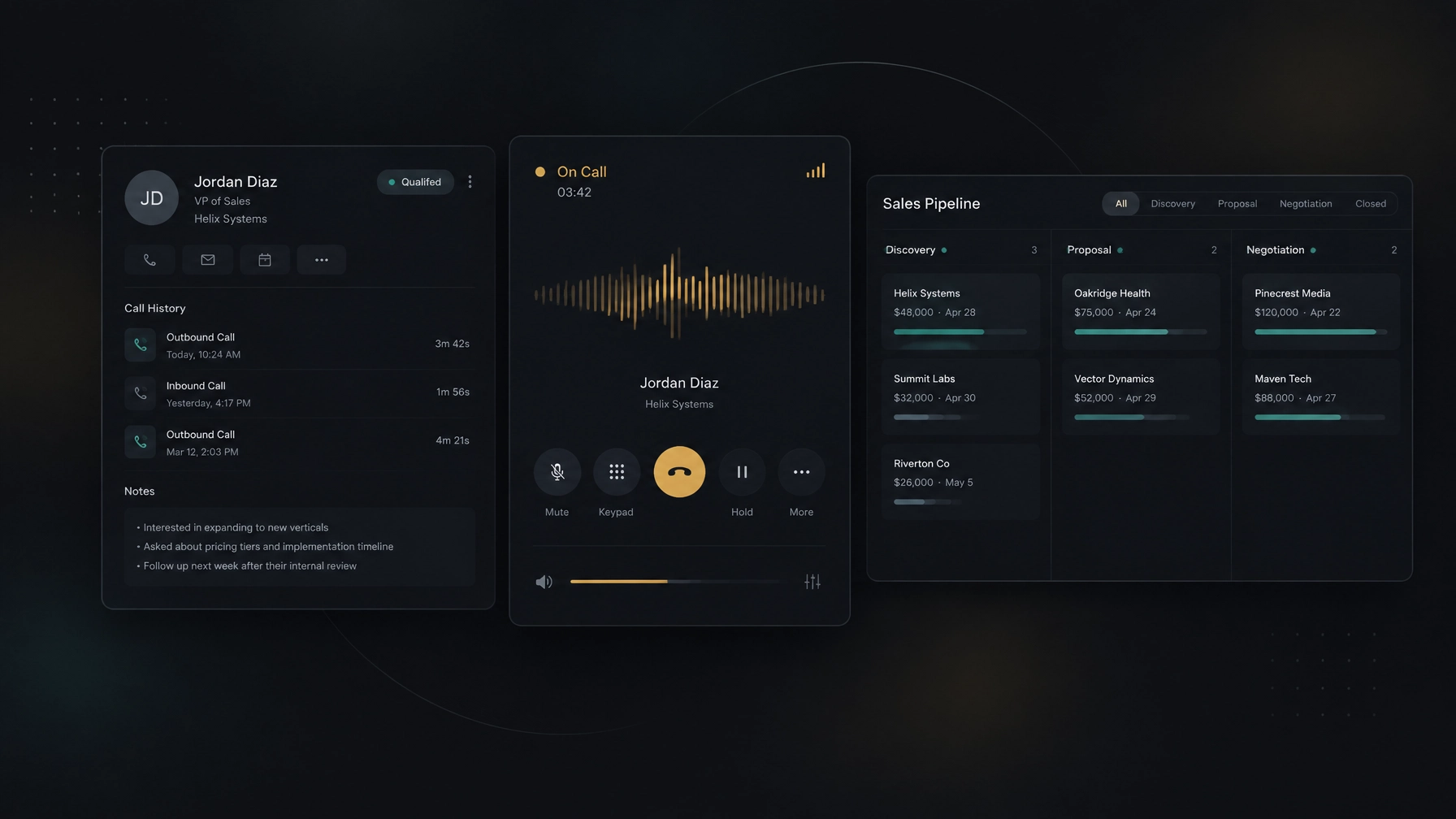
NexusDialer combines calling workflows with contact, company, and deal records. Its visual pipeline lets teams use their own stages, and reps can review call history, save outcomes and notes, and set callbacks. The platform supports progressive and predictive dialing. For managers, it offers a team-status view and call records for review.
The product’s public site describes CSV imports and exports for contacts and lists. It does not name third-party CRM integrations on the pages reviewed here, so confirm your requirements with the NexusDialer team if you plan to keep using an external CRM. Post-call transcription and AI analysis require configuration; they are not on by default. Calling also requires workspace approval and telephony setup.
This is a practical distinction: NexusDialer provides a built-in contact and pipeline workspace, rather than a promise that it will sync with every CRM. You can review the NexusDialer workspace and ask about setup before deciding whether it fits your sales workflow.
For a related look at keeping telephony in place while updating sales tools, read how to reduce contact center costs without switching SIP providers.
Frequently asked questions
What is CRM dialer integration?
CRM dialer integration connects calling software with customer and deal records. Depending on the product, reps may see CRM context while calling and save call outcomes or notes to the relevant record.
Does an integrated dialer automatically log every call?
Not always. Some platforms automatically save call details; others require a rep to choose an outcome or enter notes. Ask what is captured automatically and what needs manual entry.
Can a dialer update CRM pipeline stages?
Some platforms support pipeline updates or workflows based on call activity. The available actions vary. Verify whether updates are automatic, suggested, or completed by a rep.
What if my team does not want to replace its current CRM?
Check whether the dialer supports your CRM and which records and fields it can exchange. If the product uses a built-in CRM instead, ask how to handle your existing data and processes before changing tools.
What should we test during a pilot?
Test the full workflow: find a contact, review context, place a call, save the result, set a callback, and check the pipeline record and reports. Include the reps and managers who will use those records every day.
Make the next step easier to see
Your CRM should help reps understand who to call, what happened last time, and what to do next. If your current setup makes those steps harder, map the workflow before you buy another tool. Check where records become stale, where follow-ups get lost, and which actions your system can reliably support.
Then test a connected workflow with your team. Explore NexusDialer or start a workspace setup to review the calling and CRM requirements for your operation.
Meta title: CRM Dialer Integration: Improve Your Sales Workflow
Meta description: See how CRM dialer integration reduces manual work, keeps call context close, and helps sales teams manage follow-ups and pipeline activity.